
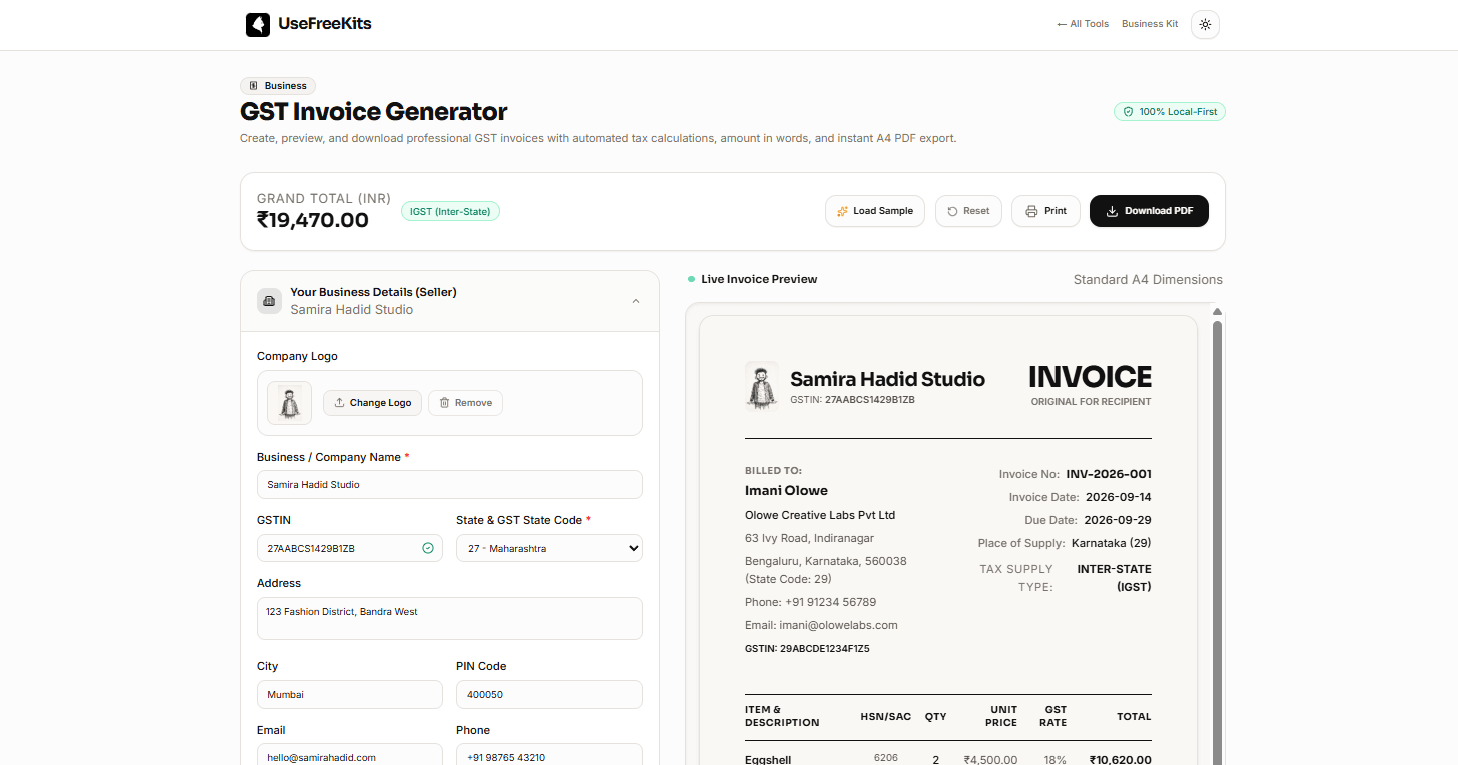
Free GST Invoice Generator: Create, Calculate & Download GST Invoices Online
Creating an invoice shouldn't require a spreadsheet, a complicated accounting application, or a subscription just to produce a simple professional document.
For freelancers, small businesses, consultants, service providers, and growing businesses, the basic process is usually straightforward: enter your business details, add the customer, list the products or services, apply the appropriate GST treatment, review the totals, and generate the invoice.
That's exactly what the UseFreeKits GST Invoice Generator is designed to help with.
You can use the tool to create an invoice directly in your browser, preview the finished document, and then print or download it as an A4 PDF.
Create an invoice with the free GST Invoice Generator →
What is a GST invoice?
A GST invoice is a document used to record the supply of goods or services and the applicable tax details for a transaction.
Depending on the transaction, an invoice may contain information such as:
Seller or business details
Customer details
GSTIN
Invoice number
Invoice date
Payment due date
Place of supply
Product or service descriptions
HSN or SAC codes
Quantity and unit
Taxable amount
Applicable GST rate
Tax amount
Total invoice value
Payment information
The exact requirements for an invoice can depend on the nature of the transaction and the applicable rules. For that reason, an invoice generator should make the calculation and document-creation process easier without pretending to replace professional tax or accounting advice.
Why use an online invoice generator?
For many small businesses, creating an invoice manually can become repetitive.
You might start with an Excel or Google Sheets template, copy the customer's information, enter each item, calculate discounts, work out GST, check the total, format the document, and finally export it as a PDF.
That works, but it also creates opportunities for small mistakes.
A dedicated invoice generator can make the process more consistent by keeping the invoice structure and calculations together.
With UseFreeKits, you can enter the information into the form and see the invoice preview update as you work.
What can you add to the UseFreeKits GST Invoice Generator?
The tool is designed around the information commonly needed when preparing a GST invoice.
1. Your business details
Start by entering your business information.
You can add:
Business or company name
GSTIN
State and GST state code
Business address
City
PIN code
Email
Phone number
You can also upload your own company logo so that the generated invoice represents your business instead of using a generic logo.
The uploaded logo is used locally for the invoice rather than requiring you to create an account or maintain a separate media library.
2. Customer details
Next, enter the information for the customer receiving the invoice.
The generator supports fields for:
Customer or contact name
Company or organization name
Customer GSTIN
Customer state and code
Billing address
City
PIN code
Email
Phone number
This makes it easier to keep the seller and customer information clearly separated in the final invoice.
3. Invoice information
The invoice section lets you provide the basic document information, including:
Invoice number
Place of supply
Invoice date
Payment due date
There is also an option for indicating whether the transaction is subject to reverse charge.
Always review these details before issuing an invoice, especially the invoice number and dates.
Add products or services as line items
The line-item section is where you enter the actual products or services being billed.
For each item, you can enter:
Item or service description
HSN/SAC code
Quantity
Unit
Rate
Discount
GST rate
The generator then calculates the taxable amount, GST amount, and line total.
For example, if you are billing for website development, consulting, design work, products, or another service, you can add each item separately rather than manually calculating everything in a spreadsheet.
Keeping each item separate also makes the final invoice easier for the customer to understand.
GST calculations
The invoice generator supports GST calculations for the invoice based on the information entered into the form.
Depending on the selected states and transaction details, the invoice can represent an intra-state or inter-state tax treatment.
The preview can therefore show the relevant GST treatment and calculated totals.
However, the tool does not determine whether your transaction legally qualifies for a particular tax treatment.
Always verify the applicable GST treatment, tax rate, registration details, and invoice requirements before issuing an invoice.
If you are unsure about the correct tax treatment for your business or transaction, consult a qualified tax professional.
Discounts are supported too
Discounts are common when invoicing customers, but calculating them manually for multiple line items can become tedious.
The generator allows you to enter discounts for individual items.
This means you can keep the original rate and quantity visible while applying the appropriate discount to that particular line.
The resulting taxable amount and GST calculation are then reflected in the invoice totals.
See the invoice before downloading it
One useful part of the generator is the live invoice preview.
Instead of filling out a form and hoping the exported document looks correct, you can review the invoice while entering your information.
The preview shows the structure of the final invoice, including:
Business information
Customer information
Invoice details
Line items
GST information
Totals
Amount in words
Payment information
Authorized signature
Company branding
This makes it easier to catch a missing field or incorrect value before generating the final document.
Amount in words
The generator also converts the final invoice amount into words.
For example, instead of showing only:
₹23,364.00
the invoice can also display the corresponding amount in words.
This can be useful when reviewing the final invoice and provides another representation of the total amount.
You should still verify the final numerical amount before sending the invoice to a customer.
Print or download the invoice as PDF
Once the invoice is complete, you can either print it or download it as a PDF.
The invoice is designed around a standard A4 format so that the generated document can be used as a conventional printable invoice.
Before downloading or printing, take a final look at:
Business name
GSTIN
Customer information
Invoice number
Invoice date
Due date
Line items
GST rates
Discounts
Total amount
Payment details
Authorized signatory
A quick review can save you from having to correct and resend an invoice later.
Is the GST Invoice Generator free?
Yes.
The UseFreeKits GST Invoice Generator is available as a free browser-based tool.
There is no need to install desktop accounting software just to create a basic invoice, and the tool is designed to work directly in the browser.
You can open the generator, enter your information, preview the invoice, and export the result.
Open the GST Invoice Generator
Does my invoice data leave my device?
The tool is designed around a local-first approach.
Invoice information is processed in your browser rather than requiring you to create an online account and upload your invoice data to a remote dashboard.
This is particularly useful when working with business and customer information that you would rather keep on your own device.
Even so, you should always follow your own organization's privacy and data-handling requirements when working with customer information.
How to create a GST invoice with UseFreeKits
The process is simple:
Step 1: Open the invoice generator
Open the UseFreeKits GST Invoice Generator.
Step 2: Add your business information
Enter your company name, GSTIN, state, address, contact information, and optionally upload your company logo.
Step 3: Add the customer
Enter the customer's name, organization, GSTIN if applicable, state, and billing information.
Step 4: Enter invoice details
Add the invoice number, invoice date, payment due date, and place of supply.
Step 5: Add your products or services
Create a line item for each product or service and enter the quantity, rate, discount, GST rate, and HSN/SAC information where applicable.
Step 6: Add payment information
Enter your available payment or banking details if you want them included on the invoice.
Step 7: Review the preview
Check the generated invoice carefully.
Make sure the GSTIN, customer information, invoice number, dates, line items, tax amounts, and final total are correct.
Step 8: Print or download
When everything looks correct, print the invoice or download the A4 PDF.
A few things to check before sending an invoice
An invoice generator can simplify document creation, but it cannot know whether every piece of information you entered is correct.
Before sending an invoice, check:
Business information
Make sure the company name, address, GSTIN, and contact details are correct.
Customer information
Check the customer's legal or billing name, address, GSTIN where applicable, and state.
Invoice number
Make sure the invoice number follows your business's numbering system and has not already been used.
Dates
Check both the invoice date and payment due date.
Line items
Verify the description, quantity, rate, discount, and applicable tax rate for every item.
Tax treatment
Confirm that the GST treatment and applicable rate are correct for the transaction.
Final amount
Compare the calculated total with your own records before issuing the document.
If you're unsure about GST compliance or a particular tax treatment, get professional advice rather than relying solely on an online calculator.
Who can use this invoice generator?
The tool can be useful for a range of people who need to create invoices without maintaining a complex billing system.
For example:
Freelancers
Consultants
Developers
Designers
Small businesses
Service providers
Independent professionals
Agencies
Online sellers
Businesses that occasionally need to create an invoice
It is especially useful when you need a professional invoice quickly without setting up a complete accounting platform.
A simple alternative to maintaining an invoice template
An invoice template can work well when your requirements are fixed.
The problem starts when you have to repeatedly change calculations, add or remove line items, apply discounts, update GST treatment, and maintain formatting.
A generator brings those tasks into one workflow.
Instead of maintaining formulas and formatting in a spreadsheet, you enter the transaction details and let the tool produce the structured invoice.
For occasional invoices, that can be a much simpler workflow.
Final thoughts
Creating an invoice should not require a complicated workflow.
You need the right business information, customer details, transaction details, applicable tax information, and a clear record of what was supplied.
The UseFreeKits GST Invoice Generator brings those pieces together in a browser-based interface with live preview, GST calculations, amount-in-words conversion, company-logo support, printing, and A4 PDF export.
It is intended to make invoice creation faster while keeping the actual invoice data on your device.
As with any invoice tool, review the generated document carefully before issuing it and verify the tax and compliance requirements that apply to your business.