
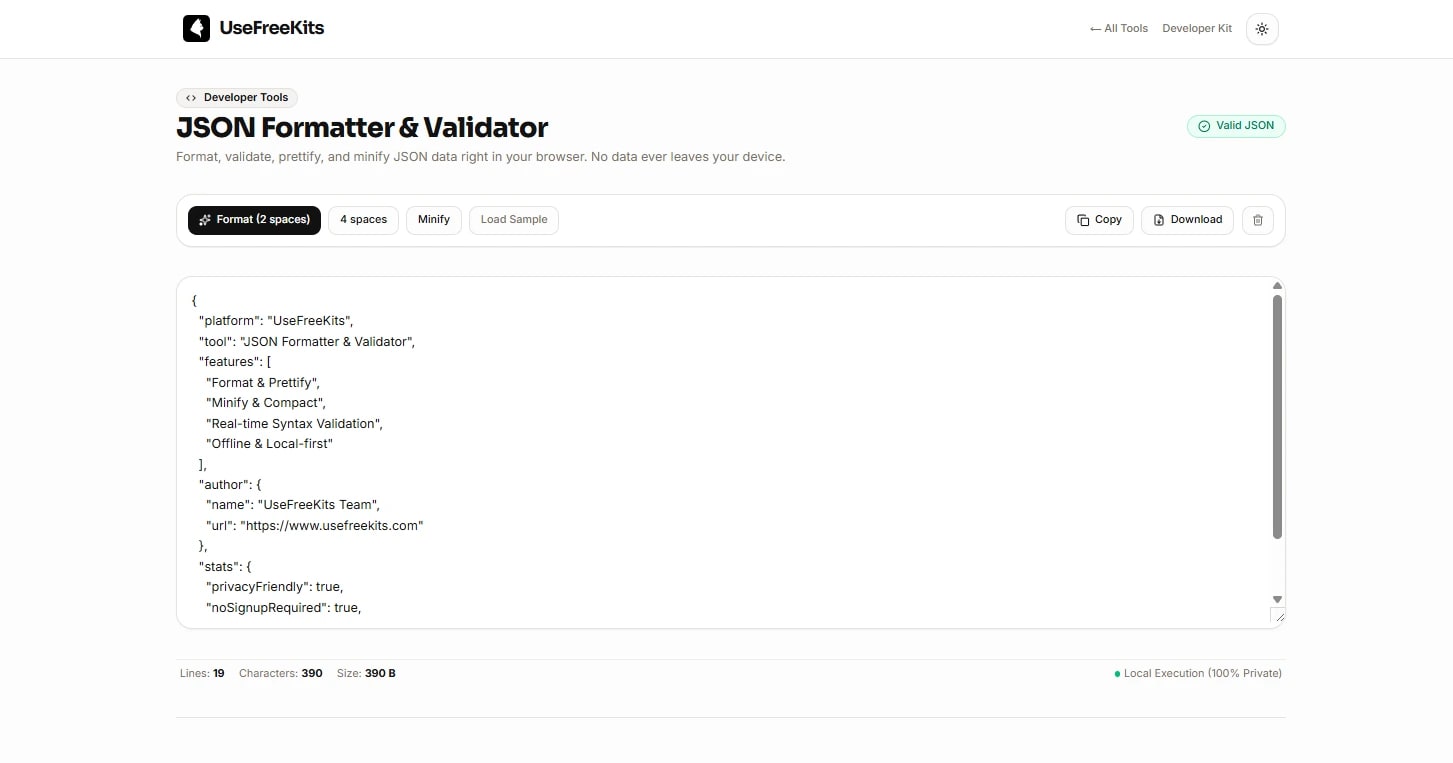
JSON Formatter: How to Format, Validate, and Minify JSON
If you've worked with APIs, configuration files, or JavaScript applications, you've probably encountered JSON that looks like this:
{"name":"Akshay","role":"developer","skills":["JavaScript","TypeScript","Node.js"]}There's nothing technically wrong with it, but reading or debugging a large JSON response in this form can quickly become difficult.
Formatting the same data makes the structure much easier to understand:
{
  "name": "Akshay",
  "role": "developer",
  "skills": [
    "JavaScript",
    "TypeScript",
    "Node.js"
  ]
}
That's where a JSON formatter becomes useful.
A formatter can turn compact or poorly formatted JSON into a readable structure, while a validator can help identify syntax problems before you use the data in an application.
If you need to work with JSON directly, you can use the free JSON Formatter & Validator on UseFreeKits. It runs directly in your browser and supports formatting, validation, and minification.
What is JSON?
JSON stands for JavaScript Object Notation. It is a text-based format commonly used for representing structured data.
Despite its name, JSON isn't limited to JavaScript. It is supported by practically every modern programming language and is widely used when applications need to exchange structured information.
For example, an API might return:
{
  "id": 1024,
  "name": "Image Compressor",
  "active": true,
  "tags": [
    "image",
    "compression",
    "web"
  ]
}
Here you have several common JSON data types:
Strings
Numbers
Booleans
Arrays
Objects
null
Because JSON is relatively simple and easy for both computers and humans to work with, it has become a common format for APIs and web applications.
Why would you need a JSON formatter?
JSON generated by an API or application isn't always easy to read.
For example, a response might contain hundreds of lines of nested objects and arrays. When everything is compressed onto a few lines, finding a particular property or understanding the structure becomes unnecessarily difficult.
Formatting JSON adds indentation and line breaks so that relationships between objects and arrays are easier to see.
This is especially useful when you're:
Debugging an API response
Inspecting request or response payloads
Working with configuration files
Reviewing JSON during development
Checking nested objects
Preparing JSON for documentation
Comparing changes between two versions of a payload
The goal isn't to change the data. It's to make the existing structure easier to read.
Formatted JSON vs minified JSON
There are generally two ways you'll encounter JSON during development: formatted and minified.
Formatted JSON
Formatted JSON contains indentation and line breaks:
{
  "user": {
    "name": "Alex",
    "email": "alex@example.com"
  }
}
This is much easier for a developer to inspect.
Minified JSON
Minified JSON removes unnecessary whitespace:
{"user":{"name":"Alex","email":"alex@example.com"}}The underlying data is the same.
Minification is useful when compact data is preferable, such as when sending JSON over a network or storing it where whitespace doesn't provide any value.
One important point: minifying JSON doesn't make the data itself smaller in a meaningful semantic sense; it removes formatting whitespace.
How to format JSON
If you already have a JSON response, formatting it doesn't need to be complicated.
With the UseFreeKits JSON Formatter, the basic workflow is:
1. Paste your JSON
Copy your JSON response or document and place it in the editor.
2. Check for syntax errors
The formatter validates the JSON while you're working with it. This can help identify problems such as incorrect quotes, misplaced commas, or unmatched brackets.
3. Format the JSON
Choose the formatting option to turn the compact JSON into an indented structure.
You can use either 2-space or 4-space indentation, depending on your preference and project conventions.
4. Copy the result
Once the JSON is readable, copy the formatted version and use it wherever you need it.
The tool also supports downloading the formatted output as a .json file.
Common JSON syntax errors
A lot of JSON problems aren't caused by the data itself. They're caused by small syntax mistakes.
Here are some of the ones developers run into most often.
1. Using single quotes
This is JavaScript-style object syntax, but it isn't valid standard JSON:
{
  'name': 'Alex'
}
JSON strings and property names should use double quotes:
{
  "name": "Alex"
}
2. Trailing commas
This is another common mistake:
{
  "name": "Alex",
  "age": 28,
}
The comma after 28 shouldn't be there.
Correct:
{
  "name": "Alex",
  "age": 28
}
JavaScript may allow trailing commas in many situations, but standard JSON is stricter.
3. Unquoted property names
This isn't valid JSON:
{
  name: "Alex"
}
The property name needs double quotes:
{
  "name": "Alex"
}
4. Mismatched brackets
Nested JSON needs matching {}, [], and other delimiters.
For example:
{
  "users": [
    {
      "name": "Alex"
    }
  ]
}
If one of those brackets is missing or incorrectly placed, the parser won't be able to interpret the structure correctly.
This is one reason validation is useful when working with large JSON documents.
JSON formatter vs JSON validator
These two terms are often used together, but they're slightly different.
JSON formatter
A formatter primarily makes valid JSON easier to read.
For example:
Compact JSON
      ↓
Indentation + line breaks
      ↓
Readable JSON
JSON validator
A validator checks whether the JSON follows the expected syntax.
For example, if you accidentally write:
{
  "name": "Alex",
}
a validator can identify the syntax problem.
For development work, having both capabilities together is convenient because you can check the JSON and format it in the same place.
When should you minify JSON?
You generally don't want to minify JSON while you're actively debugging it.
Readable JSON is much easier to inspect.
Minification becomes more useful when:
You're preparing a production payload
You're transferring JSON over a network
You don't need human-readable formatting
You're storing large amounts of JSON
You want to remove unnecessary whitespace
For example:
During development
{
  "products": [
    {
      "id": 1,
      "name": "Keyboard"
    },
    {
      "id": 2,
      "name": "Mouse"
    }
  ]
}
Compact representation
{"products":[{"id":1,"name":"Keyboard"},{"id":2,"name":"Mouse"}]}Both represent the same data.
The difference is readability and whitespace.
JSON formatting is especially useful for API debugging
If you're working with REST APIs, JSON formatting can save a surprising amount of time.
Imagine receiving an API response containing:
user information
authentication details
nested orders
product information
payment information
metadata
Trying to inspect that response as one long line is painful.
Formatting it immediately gives you a structure that is much easier to scan.
For example:
{
  "user": {
    "id": 42,
    "name": "Alex"
  },
  "orders": [
    {
      "id": 1001,
      "status": "paid",
      "items": [
        {
          "product": "Keyboard",
          "quantity": 1
        }
      ]
    }
  ]
}
Now you can immediately see where the user object ends, where the orders array begins, and how the nested items are structured.
This is particularly useful when debugging API responses in browser developer tools, Postman, or backend logs.
Does formatting JSON change the data?
Normally, no.
Formatting adds whitespace such as:
spaces
indentation
line breaks
It doesn't change the actual keys, values, arrays, or objects.
For example:
{"name":"Alex","age":28}and:
{
  "name": "Alex",
  "age": 28
}
represent the same JSON data.
This is why you can safely format JSON when your goal is simply to inspect or debug its structure.
Is it safe to paste sensitive JSON into an online formatter?
This is worth considering before using any online developer tool.
JSON can contain sensitive information such as:
API keys
access tokens
email addresses
customer information
internal application data
authentication credentials
You should never paste secrets into a website unless you understand how that website handles the data.
The UseFreeKits JSON Formatter is designed to process the JSON locally in your browser rather than sending the content to a remote server.
Even with local processing, though, it's good practice to avoid exposing credentials unnecessarily. If a JSON file contains an API key or password, remove the secret before sharing or troubleshooting the data.
Format JSON without installing another developer tool
For occasional JSON work, installing a dedicated application can be unnecessary.
If you just need to:
Paste JSON
Check whether it's valid
Format it
Minify it
Copy the result
you can use the free JSON Formatter & Validator on UseFreeKits.
It works directly in the browser, doesn't require an account, and performs the formatting locally.
A simple JSON debugging workflow
When you receive a JSON response that doesn't look right, don't immediately start changing random parts of it.
A simple workflow is:
Step 1 - Check the syntax
Make sure the document is actually valid JSON.
Step 2 - Format it
Convert the response into a readable structure.
Step 3 - Find the problematic section
Look through the nested objects and arrays for the property you're expecting.
Step 4 - Check the data type
A value might be a string when your application expects a number, or an object when you expect an array.
For example:
{
  "userId": "42"
}
is different from:
{
  "userId": 42
}
Step 5 - Check your API contract
If the JSON is coming from an API, compare the actual response with the API documentation or expected schema.
Formatting can make the problem easier to see, but it won't automatically fix a data-model problem.
Frequently asked questions
What is a JSON formatter?
A JSON formatter takes JSON data and adds indentation and line breaks so that its structure is easier to read and inspect.
What is the difference between formatting and minifying JSON?
Formatting adds whitespace for readability, while minifying removes unnecessary whitespace to create a more compact representation.
Can a JSON formatter fix invalid JSON?
A formatter can identify syntax problems, but you should understand and correct the underlying error rather than assuming the formatter can safely guess what you intended.
Why does JSON require double quotes?
Standard JSON uses double quotes for strings and object property names. Single quotes are not valid replacements in standard JSON.
Can I format JSON from an API response?
Yes. Copy the response into a JSON formatter and validate it before formatting. This is particularly useful when inspecting large API responses.
Does formatting JSON change its values?
No. Formatting normally changes only whitespace and presentation, not the underlying JSON values.
Can JSON be minified again after formatting?
Yes. Formatting and minification are reversible presentation changes as long as the underlying JSON remains valid.
Is JSON the same as a JavaScript object?
No. They look similar, but JSON is a text data format with its own syntax rules. A JavaScript object can contain constructs that aren't valid JSON.
Final thoughts
JSON is simple enough to work with manually, but large or nested JSON quickly becomes difficult to read.
A formatter gives you a cleaner view of the structure, while validation helps catch syntax mistakes before they cause problems elsewhere. Minification is useful when you need a compact representation for transmission or storage.
For everyday API debugging and development, having formatting, validation, and minification in one place can make the process much quicker.
If you regularly work with JSON, you can try the UseFreeKits JSON Formatter & Validator to format, validate, prettify, or minify JSON directly in your browser.