
Word Count: How to Count Words, Characters, Sentences, and More
When you're writing something, the number of words isn't always the only thing that matters.
An essay may have a maximum word count. A social media post may have a character limit. A blog post may need an estimated reading time. A speech or video script needs to fit within a certain amount of speaking time.
Sometimes you simply want to know how long a piece of writing is.
A word counter can answer the first question, but a good text analyzer can tell you much more.
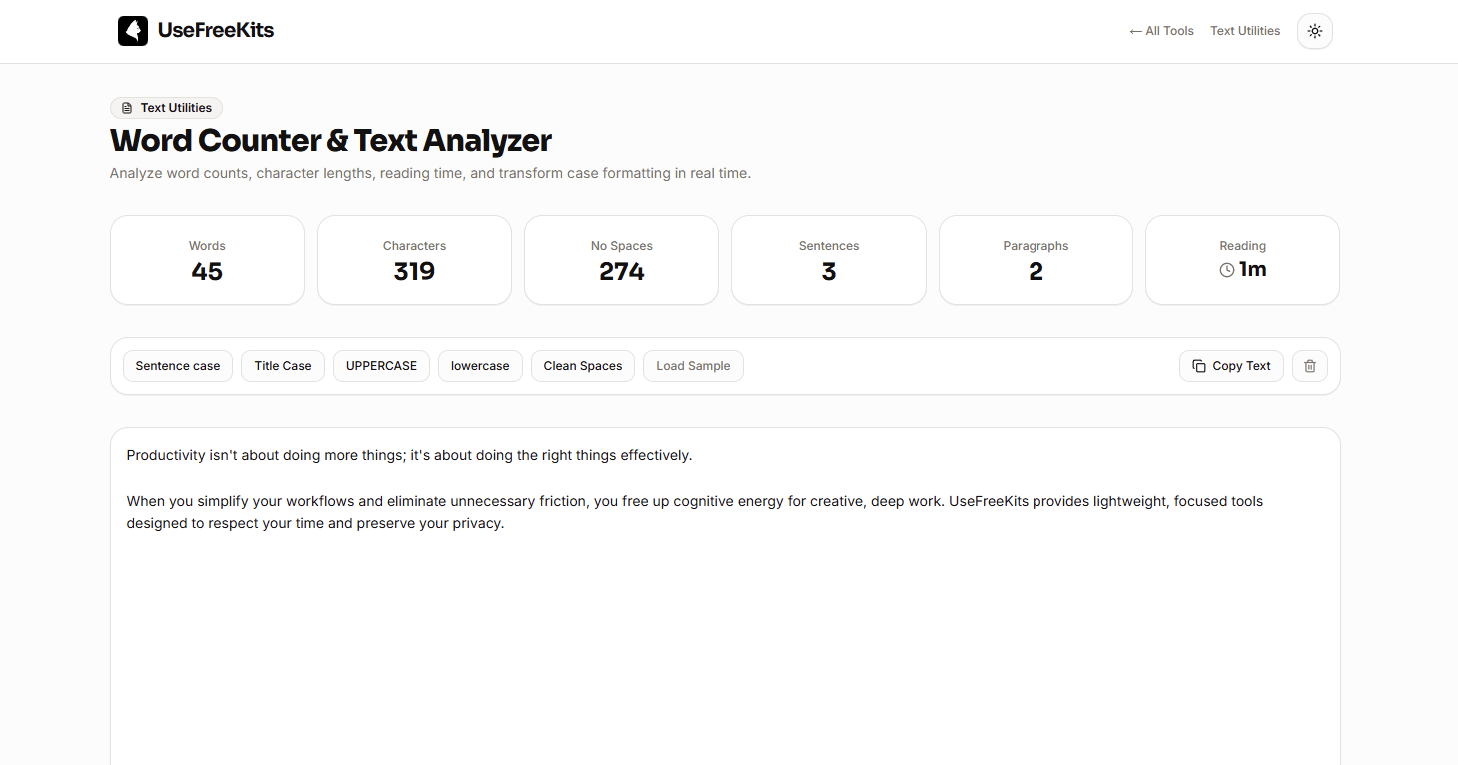
The UseFreeKits Word Counter & Text Analyzer lets you type or paste text and see its word count, character count, sentence count, paragraph count, reading time, and speaking time in real time. It also includes simple text-cleanup and case-conversion tools.
The useful part is that you don't have to calculate any of these numbers yourself.
What is a word counter?
A word counter is a tool that calculates how many words are contained in a piece of text.
For example:
Writing clearly takes practice.
A word counter can immediately tell you how many words that sentence contains.
This sounds simple, but manually counting words becomes impractical once you're dealing with hundreds or thousands of them.
That's why word counters are commonly used for:
Essays
Blog posts
Articles
Reports
Assignments
Speeches
Video scripts
Social media posts
Website copy
Applications
Instead of guessing how long your text is, you can get the number immediately.
Why does word count matter?
Word count is useful whenever the length of your writing matters.
For students, it can help determine whether an essay is within the required range.
For writers, it provides a quick way to see how long an article or draft has become.
For someone preparing a speech, the number of words can provide a starting point for estimating how long the presentation might take.
For website owners, character counts can be more useful than word counts when writing short pieces of content such as titles or descriptions.
The important thing is not to treat word count as a measure of writing quality.
A longer article isn't automatically better than a shorter one.
If you can explain something clearly in 800 words, adding another 700 words simply to reach 1,500 doesn't necessarily improve it.
Word count vs character count
Word count and character count measure different things.
Word count tells you approximately how many words are in your text.
Character count measures the individual characters contained in it.
This distinction becomes important when you're working with a character limit.
For example, imagine you're writing a short description that must fit within a certain number of characters.
Knowing that your text contains 20 words doesn't tell you whether it fits.
The same number of words can produce very different character counts depending on the length of the words.
That's why the UseFreeKits text analyzer shows both words and total characters. It also shows the number of characters without spaces, which can be useful when a particular requirement counts characters differently.
What does "characters without spaces" mean?
This is a measurement that can be easy to overlook.
Consider:
Write better content.
The total character count includes the spaces between the words.
The characters without spaces figure removes those spaces from the calculation.
Having both numbers can be useful when you're working with a specific formatting or character-count requirement.
It also gives you a better understanding of how much actual text you're working with.
Instead of seeing only:
Words: 3
you can also see how many characters the text occupies, both with and without spaces.
Why sentence count is useful
Word count tells you how much you've written.
Sentence count tells you something about how that writing is structured.
For example, imagine an article has 1,500 words but only 20 sentences.
That doesn't automatically mean there's a problem, but it may be worth looking at some of those sentences.
Very long sentences can sometimes make information harder to follow.
On the other hand, having a very large number of extremely short sentences can make writing feel fragmented.
Sentence count isn't a writing-quality score. It is simply another piece of information you can use while reviewing your work.
The UseFreeKits analyzer calculates sentence count alongside the other text statistics.
Paragraph count can help you review structure
Paragraphs are another useful measurement when working with longer content.
A long document divided into a small number of huge paragraphs can be difficult to scan, especially on a phone or computer screen.
Checking paragraph count gives you another quick way to look at the structure of your text.
For example, if you're writing a blog post, you may notice that one section has become a very large block of text.
That could be a sign that the section would be easier to read if you separated a few ideas into smaller paragraphs.
Again, the number itself isn't a target.
A document doesn't become better simply because it has more paragraphs.
It is just another measurement that can help during editing.
How reading time is calculated
If you've ever seen an article labelled "5 min read," you've probably wondered how that number is calculated.
Usually, it comes from the number of words divided by an assumed reading speed.
UseFreeKits uses 200 words per minute (WPM) as its silent-reading benchmark.
So, as a simple example, a 1,000-word article would have an estimated reading time of around five minutes.
But remember that this is only an estimate.
People don't all read at the same speed.
Someone reading a familiar subject may move quickly through the article. Someone studying a technical explanation may stop frequently to understand a concept.
So reading time is best treated as a useful approximation rather than a promise.
Speaking time is different from reading time
Reading and speaking are two different activities.
You can usually read text silently faster than you would naturally speak it aloud.
That's why the tool provides a separate speaking-time estimate.
UseFreeKits uses 130 words per minute as its conversational speaking benchmark.
This can be useful when preparing:
Presentations
Speeches
YouTube scripts
Podcast scripts
Video voice-overs
Training material
For example, if you've written a script that needs to fit into a roughly ten-minute presentation, the speaking-time estimate gives you a starting point for checking whether the script is in the right range.
Your actual delivery will still depend on your speaking speed, pauses, emphasis, slides, and interaction with the audience.
Average word length
The tool also provides an average word length measurement.
This can give you another small insight into your writing.
If your average word length is relatively high, your text may contain a lot of longer or technical words.
That isn't automatically a problem.
A technical article about software development will naturally use different vocabulary from a short children's story.
But if you're trying to make a piece of writing easier for a general audience, looking at word length alongside the actual text can sometimes help you spot overly complicated language.
The number is useful as a reference-not as a score for your writing.
How to use the UseFreeKits Word Counter & Text Analyzer
The tool is designed to be simple.
You can open the UseFreeKits Word Counter & Text Analyzer, type directly into the editor, or paste text you've already written. The statistics update as you work.
Step 1: Enter your text
Paste your essay, article, speech, social media draft, or other text into the editor.
You can also type directly into it.
Step 2: Check the statistics
The analyzer displays:
Words
Characters
Characters without spaces
Sentences
Paragraphs
Reading time
Speaking time
Average word length
These values update as you edit the text.
Step 3: Edit your writing
Now you can make changes based on what you're trying to achieve.
If your assignment is too long, remove repetition.
If your speech is too long, shorten sections that aren't essential.
If your description exceeds a character limit, tighten the wording.
Step 4: Clean or transform the text
The tool also provides several one-click text transformations.
You can convert text to:
Sentence case
Title Case
UPPERCASE
lowercase
There's also a Clean Spaces option for removing unnecessary extra spaces.
Step 5: Copy the finished text
Once you're happy with the content, you can copy the text and continue working wherever you need it.
Case conversion: a small feature that saves time
Changing text case sounds like a very minor task until you have to do it manually across a large block of text.
Imagine someone sends you a list like this:
NEW PRODUCTWEBSITE DESIGNCUSTOMER SUPPORTMONTHLY REPORT
If you need it in lowercase, manually editing every line is unnecessary work.
A case converter can change the formatting immediately.
The UseFreeKits tool supports four case transformations:
Sentence case
This is an example sentence.
Title Case
This Is an Example Sentence.
UPPERCASE
THIS IS AN EXAMPLE SENTENCE.
lowercase
this is an example sentence.
These transformations are built into the same tool as the word and character analysis.
Cleaning extra spaces
Copied text doesn't always arrive in perfect condition.
You might paste text from:
A PDF
A website
An email
A document
A spreadsheet
Another application
and discover that it contains unnecessary spaces.
For example:
This sentence contains extra spaces.
You could fix that manually, but if the text contains hundreds of lines, it becomes tedious.
The Clean Spaces function in UseFreeKits is designed for this kind of simple cleanup.
It is a small feature, but it fits naturally into a tool that you're already using to analyze text.
How word count can help with essays
Students are one of the most common groups that benefit from word counters.
Suppose your assignment has a 2,000-word maximum.
Instead of writing the entire essay and checking the length at the end, you can check the count while working.
A simple workflow is:
Write → check → edit → check again
If you're at 2,300 words, you know that some editing is required.
But don't simply delete random sentences until you reach 2,000.
Look for:
Repeated points
Unnecessary introductions
Wordy phrases
Repeated examples
Sections that don't directly support the topic
This lets you reduce the word count while preserving the important information.
Also remember that your school or university may have its own rules about what is included in a word count. If your instructor provides specific instructions, those should take priority over a general online word counter.
How writers can use word count when editing
Writers often think about word count only when they're trying to reach a particular length.
It can actually be more useful during editing.
Suppose you've written a 2,500-word article.
You can use the counter to understand the size of the article, but then look at the writing itself.
Are there sections that repeat the same idea?
Are some paragraphs unnecessarily long?
Could an explanation be made clearer with fewer words?
Could an important point use more explanation?
The number doesn't answer these questions for you.
It simply gives you useful information while you make the decisions.
How to reduce your word count without damaging the writing
If you've gone over a word limit, don't start deleting useful information immediately.
Start with unnecessary wording.
For example:
Longer:
Due to the fact that the tool is available online, users are able to access it from their browser.
Shorter:
Because the tool is online, users can access it from their browser.
The meaning remains almost the same, but the second version is more direct.
Look for phrases such as:
"in order to" → "to"
"due to the fact that" → "because"
"at this point in time" → "now"
"a large number of" → "many"
These small edits can make writing shorter and clearer at the same time.
Don't add unnecessary words just to hit a target
The opposite problem happens too.
If you've been asked to write 1,500 words and your draft is 1,100, it can be tempting to add filler.
That's usually not helpful.
Instead, ask whether the reader needs more information.
You might add:
A useful example
An explanation of a difficult concept
Supporting evidence
A practical step-by-step section
An important limitation
Answers to common questions
This increases the length because you're adding value, rather than simply increasing the number on the counter.
Character count for short-form content
Character count becomes especially useful when you're writing content with a limited amount of space.
For example:
Social posts
SMS messages
Short descriptions
Website metadata
Form fields
Advertisements
UseFreeKits specifically highlights character limits as a practical use case and mentions examples such as 155–160 character meta descriptions, 280-character X/Twitter posts, and 160-character SMS messages.
The exact limits of third-party platforms can change, so always check the current requirements of the platform you're publishing on.
But the general principle remains the same: if the system limits characters, character count is more useful than word count.
Word count for blog posts
There is no single word count that every blog post should have.
A short announcement might only need a few hundred words.
A detailed tutorial may need several thousand.
The better approach is to start with the question you're trying to answer.
Then explain the topic as thoroughly as the reader needs.
After that, check the word count.
This prevents a common problem where writers decide that an article "must be 2,000 words" and then add unnecessary paragraphs just to reach the number.
Useful content should determine the length-not the other way around.
Word count for speeches and video scripts
Word count can also help when you're preparing spoken content.
A script that looks short on a screen can take longer than expected once you add pauses and explanations.
A speaking-time estimate gives you a starting point.
UseFreeKits calculates speaking time using a 130 WPM benchmark.
For a presentation, however, you should still practice the script aloud.
Your actual delivery speed is more important than a generic benchmark.
If the tool estimates eight minutes but you consistently take ten minutes during rehearsal, your rehearsal is the measurement that matters for your presentation.
What a text analyzer cannot tell you
It's easy to expect too much from writing tools.
A word counter can tell you that your article contains 1,800 words.
It cannot tell you whether those 1,800 words are useful.
It can count sentences.
It cannot determine whether your argument makes sense.
It can estimate reading time.
It cannot know whether your reader will actually understand the subject.
It can convert uppercase text to lowercase.
It cannot decide which words should be capitalized for your particular context.
That's why text analysis works best as part of the editing process rather than as a replacement for editing.
Does the tool store your text?
Privacy can be an important consideration when you're pasting drafts into an online text tool.
The UseFreeKits Word Counter & Text Analyzer is designed to run 100% locally in your browser. The tool page describes its processing as local rather than sending the text to a remote server.
That means the analysis happens in your browser on your device.
Even so, if you're working with confidential business information, private documents, or material covered by an organization's data-handling rules, you should always follow those rules.
A simple workflow for analyzing your writing
You don't need to pay attention to every statistic every time you write.
Instead, focus on the measurements that are relevant to the task.
What you're working on Useful measurements
College essay Words
Blog post Words + reading time
Social media post Characters
Website description Characters
Speech Words + speaking time
YouTube script Words + speaking time
Long report Words + sentences + paragraphs
Text cleanup Case + spaces
General editing All available metrics
This makes the tool more useful than a simple word counter.
You're not just asking, "How many words did I write?"
You're getting a quick overview of the text.
Analyze your text with UseFreeKits
If you need to check the length or structure of something you're writing, the UseFreeKits Word Counter & Text Analyzer puts several basic text utilities in one place.
You can paste or type your text and see the word count, total characters, characters without spaces, sentences, paragraphs, reading time, speaking time, and average word length.
You can also clean extra spaces or transform the case of your text without opening another tool.
The analyzer works directly in your browser, so there's no need to manually calculate the numbers yourself.
Try the UseFreeKits Word Counter & Text Analyzer →
Frequently Asked Questions
What is a word counter?
A word counter is a tool that calculates the number of words in a piece of text. Many word counters also provide additional measurements such as character, sentence, paragraph, and reading-time information.
What is the difference between word count and character count?
Word count measures the number of words, while character count measures the individual characters in your text. Character count is particularly useful when you're working with a platform or form that has a character limit.
What does character count without spaces mean?
It is the number of characters remaining after spaces are excluded from the count. This can be useful when a particular requirement asks for characters without spaces.
How is reading time calculated?
UseFreeKits estimates reading time using a benchmark of 200 words per minute for silent reading.
How is speaking time calculated?
The tool uses 130 words per minute as its conversational speaking benchmark. Actual speaking time can vary depending on your pace, pauses, and presentation style.
Can I use a word counter for an essay?
Yes. It can help you check whether your essay is within the required word range. However, always follow your institution's own rules about what is included in the official word count.
Can I use it for a speech?
Yes. The speaking-time estimate can give you a rough idea of how long your script may take to deliver.
Can I change text from uppercase to lowercase?
Yes. UseFreeKits supports uppercase, lowercase, Title Case, and Sentence case transformations.
Can I remove extra spaces from text?
Yes. The tool includes a Clean Spaces function for removing unnecessary extra spaces.
Does the word counter work in real time?
Yes. The word, character, sentence, paragraph, and timing measurements update as you type or edit the text.
Final thoughts
A word counter may seem like a very simple tool, and in many cases, that's exactly what makes it useful.
You don't always need a large writing application to answer a simple question.
Sometimes you just need to know how many words are in an article, whether a description fits within a character limit, or roughly how long a speech will take to deliver.
Looking at a few additional measurements can make the process more useful.
Word count tells you the size of the text. Character count helps with length limits. Sentence and paragraph counts give you another way to look at the structure. Reading and speaking estimates help when you're preparing content for someone to read or listen to.
The numbers don't tell you whether your writing is good.
They give you information that can help you make it better.
If you want to check your writing without manually counting or calculating anything, try the UseFreeKits Word Counter & Text Analyzer.